
Integrating ads with CRM means automatically sending leads from Meta Ads, Google Ads, landing pages, or lead forms into your CRM so they can be assigned, followed up, tracked, and measured from first click to final conversion.
You spent ₹50,000 last month on Facebook and Google ads. The leads came in. Your phone buzzed with notifications. Your ad manager showed promising numbers.
But by the end of the week… your sales didn’t go up.
Why?
Because half those leads never got a call. The sales team didn’t follow up in time. Some leads were buried in emails. Others sat untouched in an Excel sheet. And while you were trying to figure out what went wrong, your competitors already closed those customers.
Here’s the truth. Most businesses aren’t losing money on ads because of poor targeting or bad creatives.
They’re losing money because they don’t have a system to catch and close leads after they click.
And that’s where things fall apart.
You don’t need more leads. You need your sales team to act immediately. You need a setup where leads don’t sit cold, where they don’t get lost, where no rep says “I didn’t get that contact.”
The fix is simple: connect your ads to your CRM so every lead moves automatically from ad form to CRM, assigned rep, follow-up, pipeline stage, and final conversion tracking.
This blog will break down exactly how that works, why it matters and how you integrate ads with CRM without any tech headaches.
It means the moment someone fills out your Meta or Google ad form, their name, phone number, email, campaign source, and form details flow directly into your CRM. The lead is captured, assigned to the right rep, tracked through follow-ups, and connected to final sales outcomes in real time.
This removes the usual back and forth between ad platforms, inboxes and spreadsheets. Your sales team doesn’t have to wait for a list. They’re notified the second a lead comes in.
Take a typical Google Ads campaign, for example. You get clicks, some form submissions, and then what?
If you’re checking the dashboard hours later or manually exporting data, you’re already behind.
But once your CRM and Google Ads are connected, that gap disappears. The system handles lead flow, assigns reps, and tracks response.
You also get full visibility into your lead data. You can see which campaign brought the lead, what happened after the follow-up and how much revenue it led to. That’s how Google Ads data becomes something you can actually act on.
When your ads and CRM talk to each other, your sales process starts working like it should. Leads come in, get assigned, followed up and tracked.
Here’s what you gain when you integrate ads with CRM:
Every lead goes straight from your ad form into the CRM. Your sales rep gets notified instantly. The chances of closing that lead go up simply because you followed up when the interest was fresh.
You don’t have to export CSVs, check inboxes or rely on someone to “share the list.” Every lead gets captured and assigned the moment it arrives. It’s tracked from start to finish inside the system.
You can finally see which Google Ads campaigns are driving results. Which keyword gave you leads that actually converted. Which targeting set worked best. All of this becomes visible when ad data flows directly into your CRM platform, helping you compare campaigns, keywords, targeting sets, lead quality, follow-up outcomes, and revenue impact.
You know exactly who called which lead, when they called, and what happened next. If a deal was lost, you can see where it went wrong. If it was closed, you can trace it all the way back to the campaign that brought it in.
Connecting your ads with your CRM unlocks the ability to track offline conversion data. You can push sales data back into your Google Ads account using offline conversion tracking, helping you optimise for real results, not just form fills.

Whether you’re running ads on Google or Meta, the goal is simple: send every lead straight to your CRM, assign it instantly, and let your team follow up while the lead is still hot.
Here’s how you can set it up.
You’ve got three common options:
Choose based on your CRM, lead volume, technical comfort, and whether you only need lead capture or also need conversion feedback to ad platforms.
Once you’ve picked your method, the next step is to connect your ad platform (Google or Meta) to your CRM or automation tool. This usually involves:
For Meta, this typically means selecting the Facebook page and specific lead form you want to sync. For Google Ads, you’ll connect your Google account and select the campaign or lead extension you want to use.
This step ensures your lead data flows into the right places inside your CRM.
You’ll be asked to match form fields (like name, phone, email) with the lead fields in your CRM. If you use custom fields (like course type, budget, location), make sure these are also mapped correctly.
Get this wrong and your reps will see blank or mismatched data, so double-check this part.
Before going live, run a test. Submit a dummy lead through your ad form and check:
If anything’s off, go back and fix the field mapping or account permissions.
Once tested, enable the automation or integration. All new leads from your connected campaigns will now flow directly into your CRM.
From here, your team can:
Related Read: Marketing Automation in India: A Simple Guide for SMBs
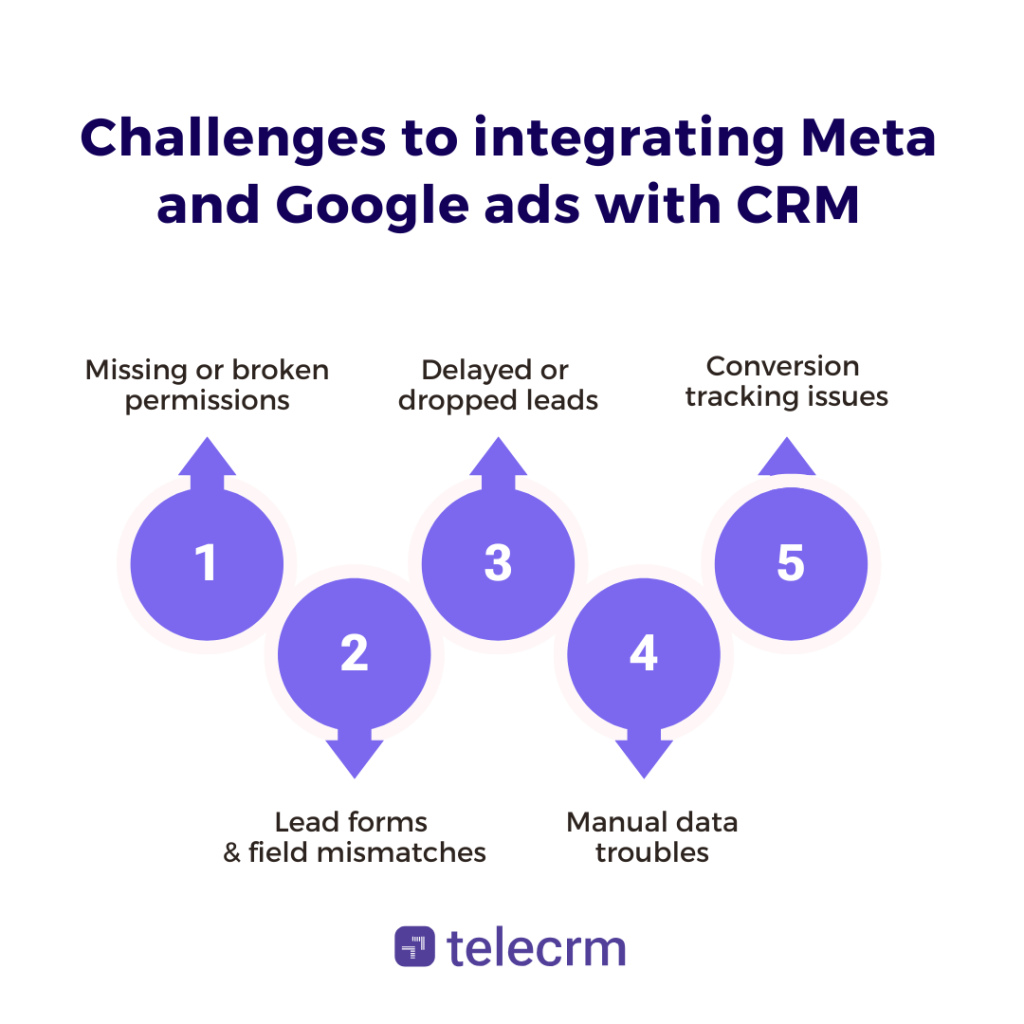
Setting up ad-to-CRM integration sounds simple. And once it works, it is. But the setup process itself can bring a few headaches, especially if you’re doing it for the first time.
Here are the most common challenges to watch out for:
When connecting your ad account, make sure you’re logged into the correct profile with the right access level. For Meta, this means full admin access to the Facebook page, business manager and lead form. For Google Ads, you’ll need full access to the campaign or MCC account.
If you don’t have the right permissions, the connection will fail or leads won’t sync.
One of the most common issues is incorrect field mapping. If the fields in your ad form don’t match the fields in your CRM (or if some are missing), your CRM may receive incomplete or blank data. Sometimes the lead shows up, but there’s no phone number or email, which defeats the point.
Always double-check that form fields match one-to-one.
Leads should flow into your CRM in real time, but if something breaks, like a webhook failing or automation limit being hit, your team may not even realise leads are missing. This is especially true when using third-party connectors like Zapier.
Make sure you test the setup properly and keep an eye on lead logs, especially in the first week.
Some teams start by testing integration on one campaign and uploading others manually. This leads to duplicate records, inconsistent fields and missed follow-ups. If you’re integrating, go all in — partial automation usually causes more mess than clarity.
To send offline conversion data back to Google Ads, you need to capture the required click or lead identifiers, such as GCLID or approved first-party lead data, and store them correctly inside your CRM.
Also ensure your forms, cookie setup, and data-sharing process follow applicable consent and privacy requirements.
Even if the lead lands in your CRM, it won’t help unless someone calls. If there’s no assignment logic or rep notification in place, leads can just sit there. And if your team doesn’t follow up fast, that’s another lost opportunity.

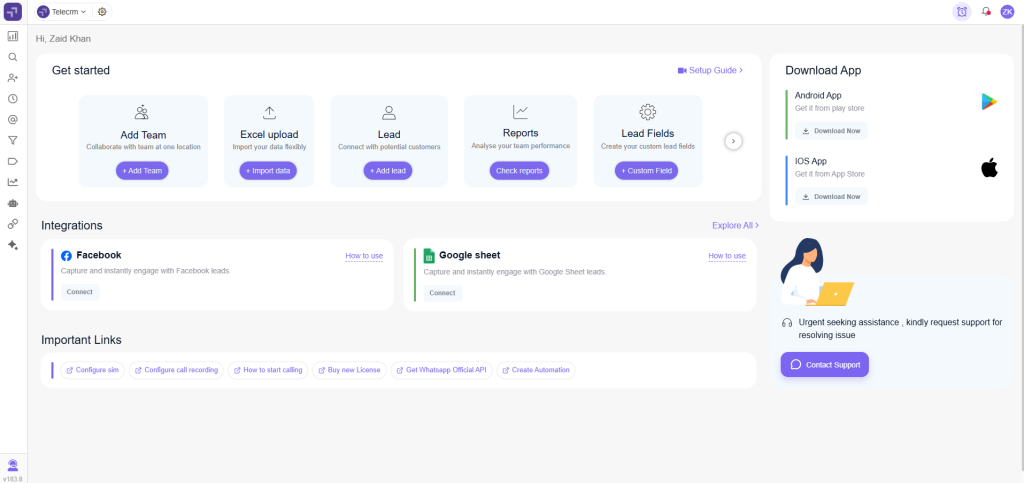
Most CRMs will let you connect your Google and Meta ad accounts to capture leads automatically. That solves one part of the problem, making sure no lead goes missing.
But capturing leads is just step one.
If you want to actually improve lead quality and get better results from your ad budget, you need to help the ad platforms learn from your best leads, the ones that convert.
And for that, it’s not enough to just pull data in. You also need to send data back, telling Google and Meta which leads turned into actual customers.
This is what most CRMs miss.
telecrm lets you send conversion data directly to your ad platforms using an API call. That means:
It creates a full-circle setup:
You integrate ads with CRM, manage leads on one platform and then improve the quality of future leads by sending back conversion data automatically.
If your team is running ads and you care about both follow-up and long-term ad performance, this is the part that often makes the biggest difference.
Running ads is easy. Converting those leads into paying customers is where the real work begins.
When you integrate ads with CRM, you close those follow-up and tracking gaps. It ensures every lead is captured in real time, followed up without delay and tracked all the way to conversion.
But the real advantage comes when your CRM doesn’t just collect leads, it also sends insights back to your ad platforms. That feedback loop is what helps your campaigns improve over time and bring in better leads, not just more of them.
Whether you’re spending ₹5,000 or ₹5 lakh a month on ads, the difference between good results and wasted budget often comes down to one thing: how well you manage and learn from your lead data.
And that’s exactly what a CRM like telecrm is built to handle. So book a live demo and transform your sales today!
You can connect Google Ads to your CRM using native integrations or automation tools like Zapier. Start by linking your Google Ads account, map the lead form fields to your CRM, and test the flow.
To sync Meta (Facebook) leads with your CRM, log into Meta Ads Manager and grant permission to access your lead forms. Then use either a direct CRM integration or a third-party tool to map the fields and automate the data transfer. Once set up, every new lead from your Facebook or Instagram ads flows straight into your CRM. With telecrm, you can integrate Meta and capture leads directly without a 3rd party platform.
CRMs like telecrm, Zoho CRM and LeadSquared offer direct integration with Facebook ads. They let you capture leads from Facebook and Instagram forms in real time, assign them to your team automatically and start follow-ups without delay. Some also support sending conversion data back to Meta for better ad optimisation.
Integrating ads with CRM means automatically sending leads from Meta Ads, Google Ads, or landing page forms into your CRM. The CRM then helps assign leads, track follow-ups, monitor campaign source, and connect ad spend with actual sales outcomes.
Sending conversion data back to ad platforms helps them understand which leads became qualified prospects, booked meetings, or paying customers. This feedback loop helps optimise campaigns for better-quality leads instead of only more form submissions.



© Copyright 2026 telecrm.in (Flamon Cloudtech Pvt Ltd) - All Rights Reserved • Privacy Policy • T&C



© Copyright 2026 telecrm.in - All Rights Reserved • Privacy Policy • T&C