
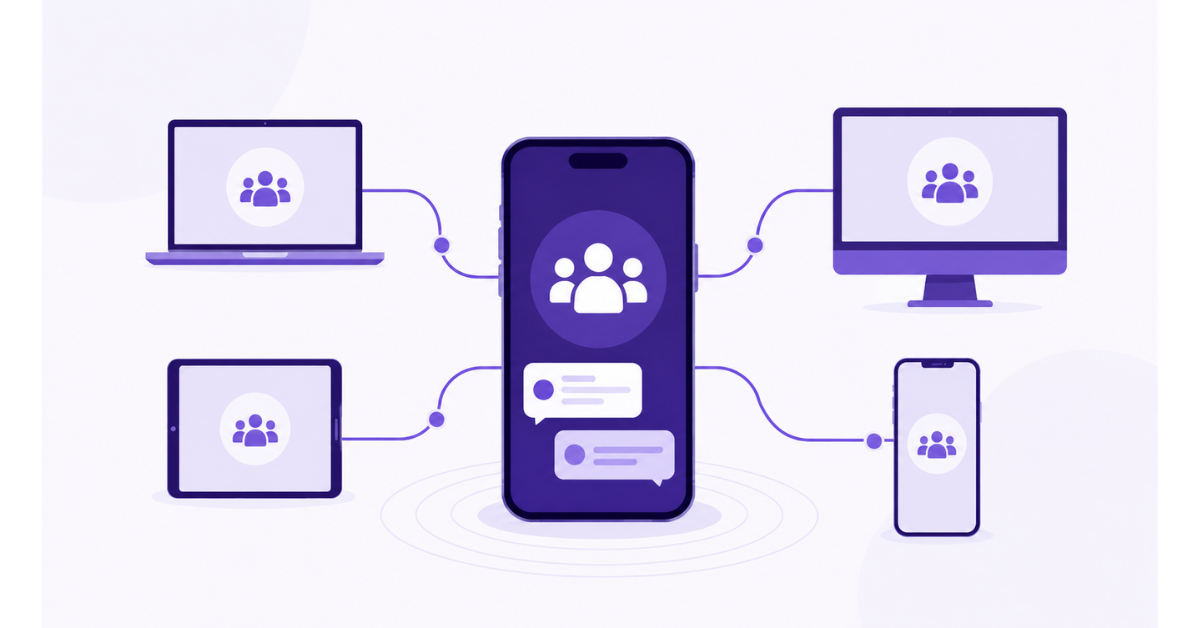

WhatsApp communities let you organise related groups under one umbrella, send admin updates through Community Announcements, and keep conversations separated by topic.
If you’ve ever shared the same update in multiple groups, only to realise half the people missed it, this is for you. Communities let you:
But here’s the thing — if you’re trying it for the first time, setting up a community can feel a bit confusing. What’s the difference between a group and a community? Where do you add subgroups? How do you control who posts what?
That’s exactly what we’ll cover in this guide — step by step, without any jargon.
A WhatsApp Community is a feature in WhatsApp that lets you organise multiple WhatsApp groups into a single shared space. One umbrella for all your related group chats. First introduced as a new feature in 2022, WhatsApp communities were built specifically to help businesses, schools and organisations manage large networks without the chaos of juggling different WhatsApp groups.
The WhatsApp Community feature is one of the most underused tools on the platform. Especially for businesses and teams trying to organise group chats at scale, it changes everything. What makes this more than just a neat folder feature is the architecture behind it.
It comes with a central announcement group, where admins post updates and send messages that reach every community member at once. And separate subgroups where members have their own two-way conversations.
It is auto-created when you set up a community. Only admins can post here, but every community participant can read it. It is basically your broadcast channel- one post, full reach, no noise from multiple members replying or conversing in the same space.
This is different from a WhatsApp broadcast list, where messages are delivered privately to individual contacts rather than inside a Community.
These are the actual chat spaces within the community. Each group keeps its own two-way conversations going independently. Members in one subgroup can’t see the phone numbers or messages of members from a second subgroup. This keeps privacy intact throughout the entire structure.
Each subgroup supports up to 1,024 members. The announcement group supports up to 5,000 members in the current versions. You can have up to 50 subgroups in a single community, which means a well-structured community can cover tens of thousands of people under one organised roof.
That’s what makes communities on WhatsApp genuinely powerful for scaling. You’re not even limited to one community, either. You can create communities for different divisions, teams or audiences and manage them all from the same WhatsApp account.
A WhatsApp group is a single chat room with its own group chats or group conversations. one space, everyone in it together, capped at 1,024 members. It works well when the people involved all know each other and need to stay connected through one shared conversation. Usually used for chats between teams, friends, family or colleagues, etc.
But a WhatsApp Community is a way to bring multiple groups organised under one structure. Keeping all your groups in one place, connected by a shared announcement channel.
When you create a WhatsApp Community, you’re essentially building a parent structure that sits above all those individual group chats. You use a community when you’re managing several related groups and need one central place to reach all of them at once.
That’s the core distinction, but the differences run deeper than just structure.
In a group, everyone posts and everyone responds; it’s a shared conversation. Whereas, in a community, the announcement group is admin-only. Subgroups still have two-way chats, but the top-level communication is deliberately one-directional. This is what prevents the chaos that could happen with 2,000 people being able to post in the same place at once.
In a regular WhatsApp group, every member can see every other member’s phone number. In a community, members across different subgroups can’t see each other’s numbers; they can only see such details of people within their own specific group. For businesses handling client groups or schools managing parent communities, this is a meaningful upgrade.
Group admins can add or remove members and restrict who can post. Community admins can do all of that, plus add or remove entire groups, control which groups are visible to members, transfer community ownership and manage the whole network structure.
A single group maxes out at 1,024 members. A community with 50 groups of 1,024 each can hold over 50,000 members across its network, all reachable through one central announcement post.
There’s also a third option worth placing here: WhatsApp Channels.
A WhatsApp Channel is a pure one-way broadcast tool, think of it as a newsletter. Followers can’t reply, there’s no subgroup structure and it’s designed for public-facing content from brands and creators. If you want two-way engagement, Channels aren’t the right fit. But if you just want to push announcements to a broad public audience with no interaction needed, Channels actually make more sense than a Community.
| Feature | WhatsApp Group | WhatsApp Community | WhatsApp Channel |
| What’s it for | Small chats: teams, friends, families | Managing multiple related groups together | One-way updates from brands, creators or organisations |
| Who can post | Everyone (unless admins restrict) | Members chat in subgroup chats; admins post announcements community-wide | Only channel admins can post |
| Member limits | Up to 1,024 members | Up to 50 groups per community, with 1,024 members each; Large-scale announcement support (latest beta) | Unlimited followers |
| Privacy | Members see each other’s phone numbers | Users only see phone numbers in groups they share | Phone numbers and profile details stay hidden |
| Admin control | Add/remove members, restrict posts | Add/remove groups, control announcements, transfer ownership, manage subgroups | Post updates, block forwards or screenshots and control follower permissions |
| Interaction level | Two-way chats between all members | Subgroups: two-way chats; announcement group: admin-only | One-way communication only |
| Best use case | Friends, family, small teams | Large organisations, businesses, schools, societies | Brand updates, celebrity announcements, product launches |
The quick rule: Groups for small focused conversations. WhatsApp Communities for managing multiple related groups at scale, keeping all your users and group members on the same page. Channels for one-way broadcasts to a large audience.
Now that you know what a community is and how it’s different from a regular group, let’s actually build one.
The setup takes under five minutes regardless of which device you’re on. WhatsApp keeps the process nearly identical across Android, iPhone and Web. What changes is mostly where buttons sit on your screen, not how it is set up. Pick your platform below and follow through.
The process is nearly identical on both platforms. The only real difference is where certain buttons are placed on the screen.
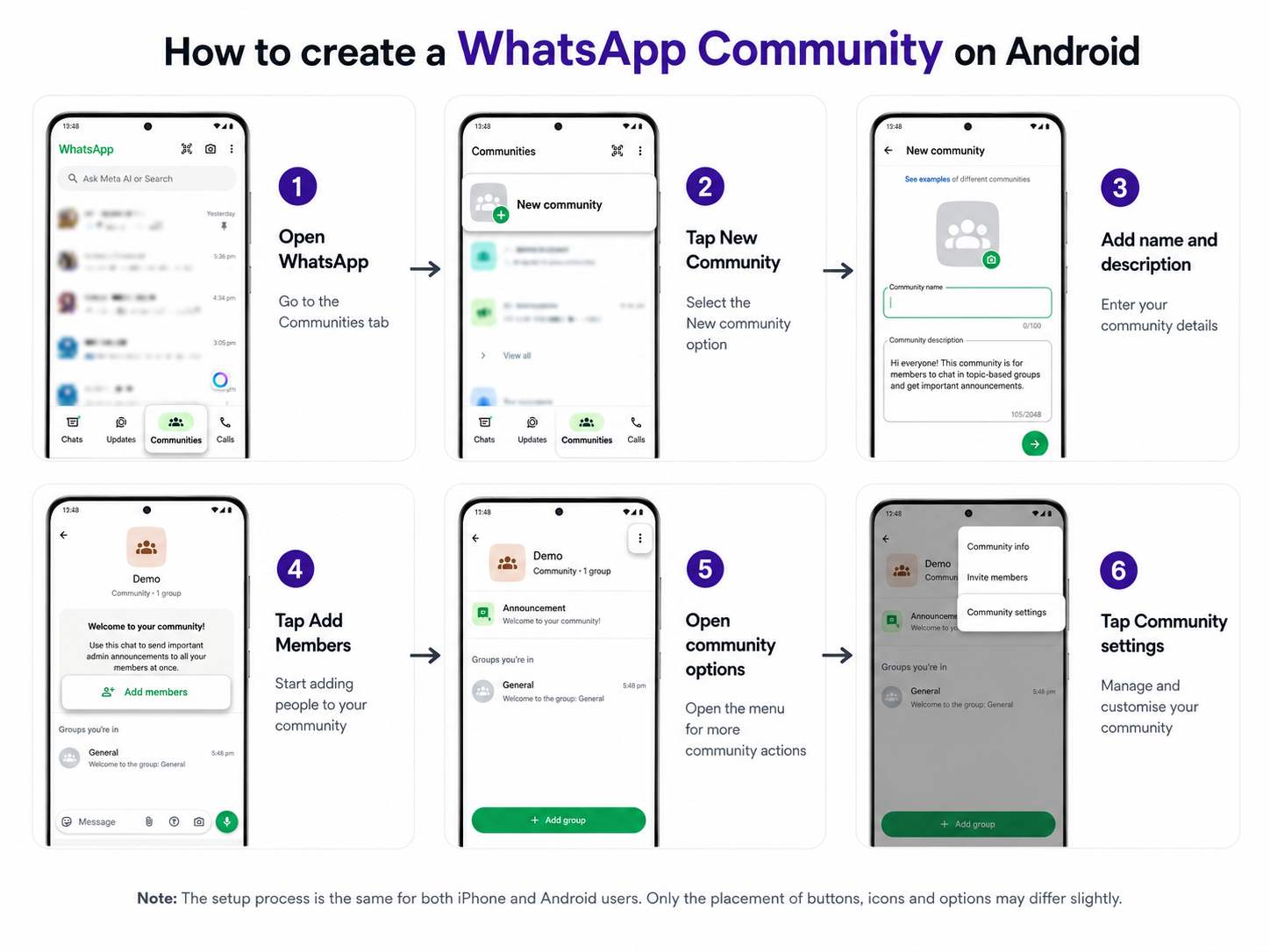
On Android, the Communities icon is in the top bar of your chat list. On iPhone, it sits in the bottom navigation bar alongside Chats, Updates and Calls.
Tap ‘New Community‘ (Android) or ‘Start a Community‘ (iPhone). If this is your first time, WhatsApp shows a brief intro screen, tap ‘Continue‘ or ‘Get Started‘ to move past it.
You’ll be asked for three things:
Don’t skip the description. It sets the context for new members and filters out people who might join by mistake.
WhatsApp will prompt you to add existing groups or create a new group directly. Adding groups to a community is straightforward if you’re already an admin of them. A few things worth knowing here:
Before you hit ‘Create‘, decide who gets admin access. Communities support up to 20 admins. For larger setups, assign admins to specific subgroups.
For example, one for sales, one for support and one for operations. Distributed responsibility keeps things from falling through the cracks.
Set the announcement group to admin-only posting. This is usually the default, but confirm it before you launch.
If you prefer working from a laptop, you can set up and manage a community through WhatsApp Web as well. The desktop app has limited community creation support in some versions, so creating on WhatsApp Web is the safer option.
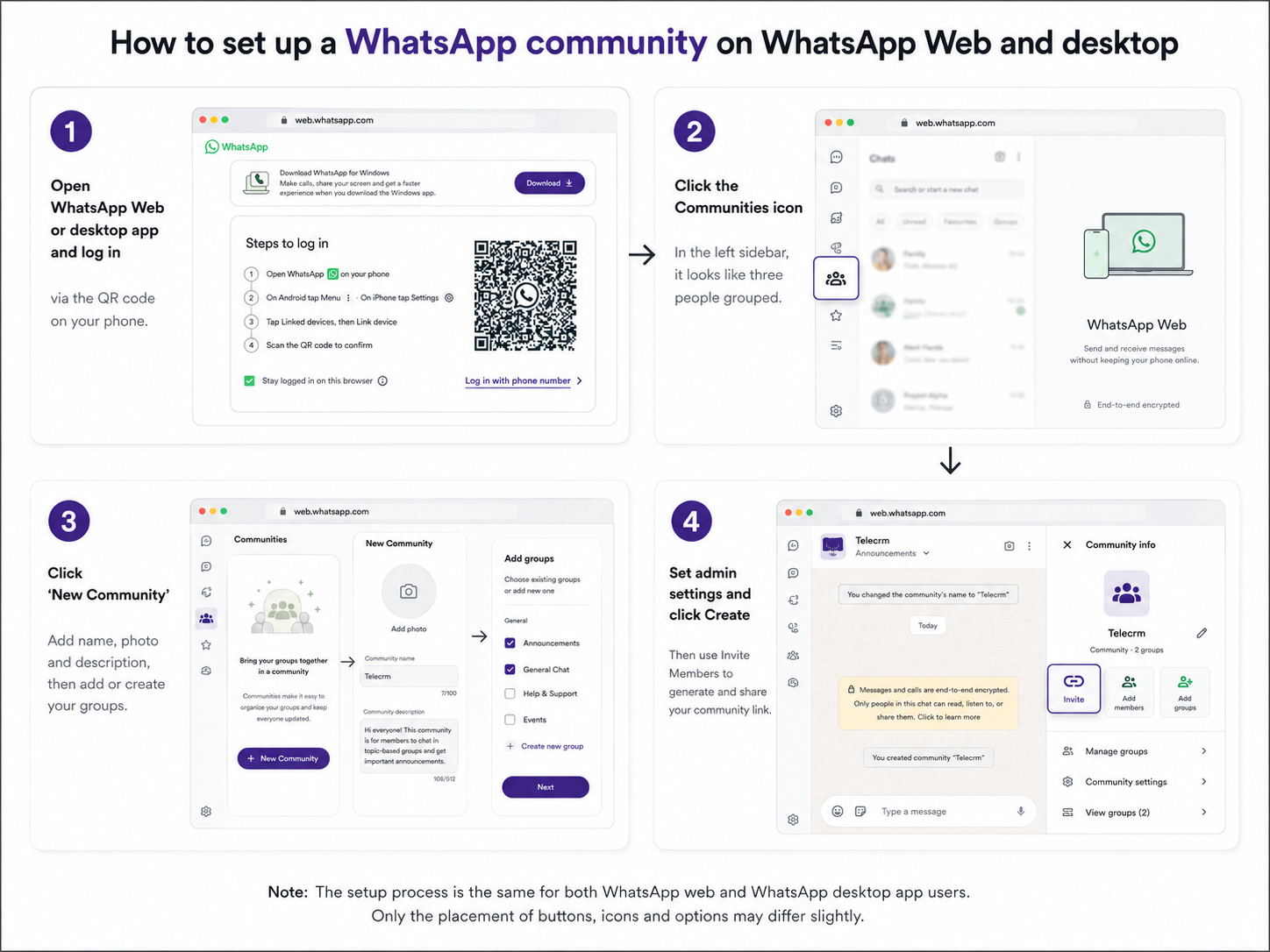
via the QR code on your phone.
Click the Communities icon in the left sidebar; it looks like three people grouped together. This opens the Communities tab, from where you can create a community, manage existing ones and organise all your group chats in one place.
and follow the same flow as mobile- name, description, profile photo, then add or create your groups.
One thing to note: creating brand new subgroups from the Web can be restricted depending on your WhatsApp version. If the option doesn’t appear, create the groups on your phone first, then add them through the Web interface.
Then select ‘Invite Members‘ option to generate and share your community link.
The web version is particularly useful for ongoing management. Use it to view members, select ‘View Members’ to see the full list, remove members who are inactive, adjust group settings and review the overall community structure. Community admins will find the desktop interface especially useful for bulk management tasks.
Setting up takes five minutes. Managing it well is the actual work. Here’s how to think about it.
The most common mistake is naming groups by who’s in them, for example, ‘Management Group’, ‘Team A’, rather than what they’re for. Purpose-based groups like ‘Client Announcements’, ‘Weekly Ops Updates’ or ‘Support Queries’ are easier to manage, easier for new members to understand and far easier to keep on-topic.
The moment you start using it to send messages casually, like check-ins or forwarded content, it loses authority. Members start ignoring it. Reserve it strictly for official updates such as policy changes, event reminders, important deadlines, product launches, etc. So that whenever something appears there, it should feel important.
The announcement group exists so community admins can send important messages to the entire group network without noise. Protect that.
“I made Rahul an admin because he’s reliable” is how communities become disorganised. Assign admin roles with clarity: who manages which group, who approves new members and who handles announcement posts. When roles are defined, nothing falls through the cracks.
Every few weeks, review your member list and group structure.
Post your rules in the announcement group within the first day of launch.
Keep them simple: what the community is for, what belongs in which group, what’s not allowed and how to reach an admin. Rules protect the signal-to-noise ratio that makes a community worth being in.
WhatsApp polls inside community groups are underused. For smoother group functionalities, a quick “Which topic should we cover this month?” or “Which time works for the webinar?” takes thirty seconds to answer and generates far more engagement than a passive announcement. Use them to make members feel like participants, not just an audience.
WhatsApp communities can be very useful, but they are not the right solution for every situation. They work well when you want to bring related groups together and send common updates without creating too much confusion.
But they also have limits. If you are planning to use communities for business, customer communication or lead management, it is important to understand both sides clearly.
Here are some of the benefits of using WhatsApp communities.
If you have WhatsApp, you can create a community today. For small businesses and community organisers working with limited resources, that’s a real advantage.
WhatsApp has over two billion active users globally. Whatever your audience is, clients, students, team members, customers, etc. Most of them are already using the app daily. You’re not asking anyone to install something new or create a new account. That removes enormous friction from onboarding.
Every message in every group within your community is encrypted. No one outside the chat, including WhatsApp itself, can read the content. For businesses handling sensitive client information or internal communications, this matters.
Phone numbers staying hidden across subgroups is a real differentiator. Connecting multiple groups in most tools exposes member information across the entire structure. WhatsApp’s community design prevents that by default.
One message, thousands of people, zero repetition. For anyone who was previously copy-pasting the same update into multiple groups, this alone justifies the setup.
There are no disadvantages as such, but using just WhatsApp communities won’t be of much help. Here’s why:
You can’t see how many people read your announcement, which groups have the highest engagement, who’s been inactive for months or whether your content is landing at all. You’re communicating with no feedback loop. For businesses that need to measure communication effectiveness, this is a significant gap.
WhatsApp Communities can’t connect to your CRM, email platform, helpdesk or any external tool. No chatbots, no triggered responses, no workflow automation. Every message is typed and sent manually. That’s fine for low-volume communication, but it breaks down fast as volume increases.
While message content is encrypted, WhatsApp (owned by Meta) does collect metadata- who you’re talking to, how often and from where. For businesses in privacy-sensitive industries or regions with strict data regulations like GDPR, this is worth understanding before committing.
In an active group, messages pile on top of each other. There’s no threading like Slack or Discord, if someone replies to a message from three hours ago, context gets lost. For topic-heavy discussions, this creates noise fast.
Communities are private. People can only join if someone shares an invite link or adds them directly. There’s no organic discovery, no public listing, no algorithm surfacing your community to interested strangers. Every new member is either manual or referred.
For most organisations, 50 groups is more than enough. For large enterprises or multi-division setups, this ceiling can become a structural constraint.
A very honest summary: WhatsApp Communities are excellent for structured group communication at zero cost. They are not a replacement for purpose-built CRM, customer engagement or community management platforms. Most efficiently utilised when you know what they’re built for and use them within those boundaries.
Growth on WhatsApp is entirely intentional. As there’s no algorithm surfacing your community to strangers, no discovery feed, no organic reach. Every new member is either invited by you or referred by someone already inside. That means your growth strategy has to be deliberate from day one.
“Join our WhatsApp Community” is not a compelling reason to join. “Join for weekly market updates, exclusive early-access offers and direct access to our team” is.
Before you send the first invite link, get clear on: what do members get from being here that they can’t get anywhere else? Build every invite message around that answer.
A ghost town is the worst first impression a new member can get. Before any broad promotion, invite people you know will actually participate: team members, loyal customers, your most engaged existing contacts. Get conversations going. Create a sense of activity. Then open it up wider.
Your email list, your Instagram bio, your website footer, your email signature, all of these can carry your community invite link. Run a specific campaign: “We’re launching a WhatsApp Community for (specific audience). Here’s what you’ll get.” It gives people a concrete reason to click.
This is the single most effective retention and growth lever. When people know that certain insights, offers, early-access announcements or behind-the-scenes content only come through the community, they join and they stay. Make membership feel like exclusive insider access, which it genuinely can be.
Don’t assume engaged members will naturally invite their contacts. Instead ask them to. A simple prompt like “If you found this useful, forward this link to a colleague who’d benefit” is simply enough. Referral-based growth in private communities carries high trust. A personal invitation from a known contact is far more compelling than any sort of ad.
When someone asks a great question, shares useful content or helps another member, call it out in the group. Public recognition is free, builds positive culture and signals to quieter members what good participation looks like. Communities that feel human grow faster than those that feel like one-way content feeds.
Inconsistency kills communities quietly. If members joined expecting weekly updates and three weeks go by with silence, they mentally check out even if they don’t leave. Build a simple calendar: what goes in the announcement group and when, what goes in each subgroup and who owns it.
Since WhatsApp gives you no analytics, observe manually. Watch which groups generate the most replies, which announcements get the most reactions and which topics spark conversation or controversy.
Use polls for a structured feedback system. Ask directly: “Was this useful?” The answers will tell you more than what any dashboard could possibly have.
WhatsApp Communities are a genuinely useful tool once you understand what they’re built for and what they’re not.
But here’s what they’re ideal for: organising large, multi-group communication, protecting member privacy and getting one clear announcement in front of everyone at once. Plus, they’re free, they require no technical setup and the majority of your audience is already there.
But the drawbacks are real. No analytics. No automation. No CRM integration. No way to follow up at scale, personalise outreach or measure what’s working.
For a coaching institute managing batches, a housing society coordinating residents, a school keeping parents informed or a small business with a close-knit client base, WhatsApp Communities can be the backbone of your communication setup.
For a business trying to convert leads, follow up with hundreds of prospects, automate responses or manage customer relationships at scale you’ll hit those walls quickly.
That’s where a WhatsApp CRM like telecrm best fits. It’s built for the layer that Communities can’t reach: bulk personalised messaging, automated follow-ups, chatbot responses, lead tracking and full CRM integration- all running through WhatsApp with complete WhatsApp automation. You’re not replacing your community; you’re giving it the infrastructure to actually drive business outcomes.
If you’re at that stage or you can see yourself getting there, book a free demo and let us show you exactly what that looks like for your setup.
Open WhatsApp, tap the Communities tab, then tap New community. Add your community name, description, profile photo and add existing or new groups. Set admin controls and privacy settings, tap Create and share your community link.
Yes. When you create a community, WhatsApp automatically creates Community Announcements. You can then add existing groups or create new groups during setup or later.
No. WhatsApp does not currently let you create a community in the WhatsApp Business app. You can still take part in communities you are already part of, but community creation is available in the regular WhatsApp app and WhatsApp Web.
If your goal is customer communication, use WhatsApp Communities for internal or member-based coordination and use telecrm for follow-ups, automation, and pipeline tracking.
WhatsApp communities help you manage multiple groups under one umbrella. You can send announcements to all groups at once, control who posts and protect member privacy—ideal for businesses, schools or large teams.
Yes, creating and using WhatsApp communities is completely free. There are no extra charges for setting up a community, adding groups or sharing updates.
No, you can’t directly convert an existing group into a community. You’ll need to create a new community first and then add that group under it as one of the linked groups.
Yes. Only community admins can send announcements and start polls in Community Announcements, but members can reply and react to those announcements.



© Copyright 2026 telecrm.in (Flamon Cloudtech Pvt Ltd) - All Rights Reserved • Privacy Policy • T&C



© Copyright 2026 telecrm.in - All Rights Reserved • Privacy Policy • T&C